By El Ghali Bennis · Published
How to Add an Online Store Link to Google Business Profile
Add your online store link to Google Business Profile, set up order links, track clicks with UTMs and fix suspensions. Step-by-step guide.

To add an online store link to Google Business Profile, sign in at business.google.com, open your profile, choose Edit profile, then Business information, and paste your store URL into the Website field. For ordering, add an Order online link under the same menu. Changes usually appear within a few hours to a few days.

That's the short version. The longer version is where the money is. A link alone doesn't sell anything. The page it points to, the way you tag it, and the products you show beside it decide whether a person on Google Maps becomes a customer. This guide covers each step, plus the mistakes that quietly waste local traffic.
How to Add an Online Store Link to Google Business Profile in Five Minutes
You can add your store link from Search, Maps, or the Business Profile manager. You need to be a verified owner or manager of the profile first. Menu labels change as Google updates the interface, so if a label differs slightly from the one below, look for the nearest match under Edit profile.
Step-by-step on desktop
- Search for your business name while signed in to the Google account that manages it. Your profile appears with a management panel.
- Click Edit profile, then open the Business information tab.
- Find Website and paste your full store URL, including https://.
- Scroll to Online ordering or Order links if it's available for your category, and add your checkout or shop page.
- Save. Google may review the change before it goes live.
Step-by-step on mobile
Open the Google Maps app, tap your profile picture, then Your Business Profile. Tap Edit profile, then Contact, and enter your website. The ordering link sits in the same area when eligible.
Which URL should you use?
Use the page that best matches the searcher's intent, not automatically your homepage. A local shopper who finds you on Maps usually wants to browse or buy. If you sell mostly online, link to your shop or best-seller collection. If you're a physical shop with a small web catalog, link to the homepage and keep the shop in the nav.
Always use a secure, mobile-fast page. Many local searches happen on phones, so a slow product page can cost you the visit before it starts. Google's own Core Web Vitals guidance is a good benchmark for what "fast enough" means.
Google Business Profile Order Online Button: Who Gets It?
The order online button isn't available to every business. Google shows it mainly for food and restaurant categories and some retail types, and it relies on either a supported ordering partner or a link you provide in the Order links section of the profile.
According to the Google Business Profile Help center, eligibility depends on your business category and country. Link limits matter too. The order link is a single "place action" link: you can usually set one preferred link per action type, such as order online or appointment, and a partner-provided link may take priority over one you enter by hand. If your link doesn't display, check whether a partner link is overriding it. If you don't see the option at all, you still have strong routes to get online orders from Google Maps:
- Website link: always available, and it's the button most people tap.
- Products section: show items with prices and link each to your store.
- Posts: promote offers with a Buy or Order button.
- Merchant Center connection: surfaces your inventory in local listings.
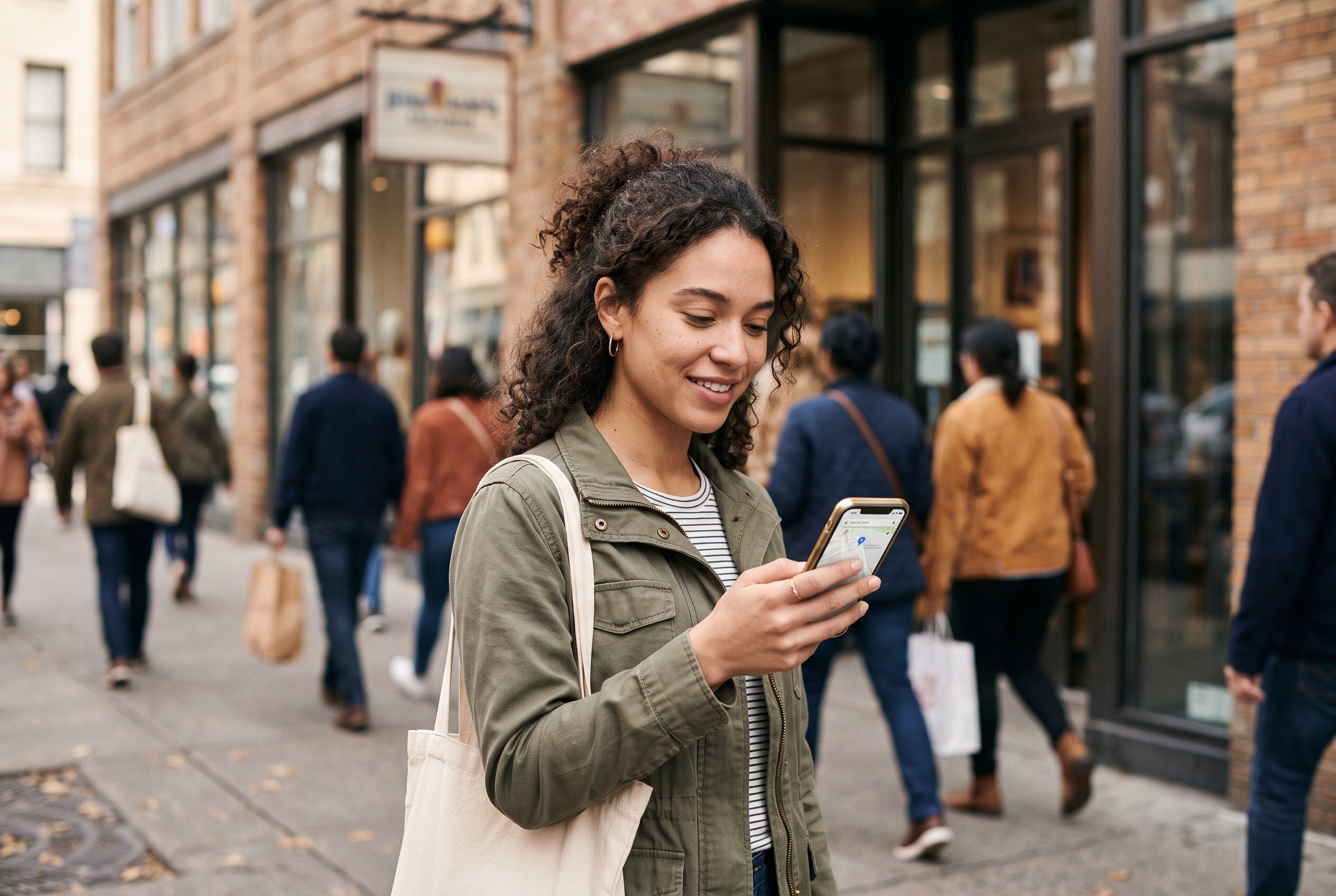
If you sell locally and also ship, the setup in how to start selling online from a physical store covers the groundwork you need before sending map traffic to a web shop.
How to List Products on Google Business Profile
You list products on Google Business Profile through the Products tab: add a photo, name, category, optional price, and a link to the matching page on your store. Each product can carry a button such as Buy, Order online, or Learn more.
What to fill in for every product
- Name: use the words a shopper would type, such as "Ethiopian light roast coffee beans 250g".
- Photo: a clean, well-lit image. Square crops display best.
- Price: show it. Priced products set expectations and cut empty clicks.
- Description: up to 1,000 characters, but the first two lines matter most.
- Link: point to that exact product page, not the shop home.
Treat this like a shop window. Feature your 10 to 20 best sellers or seasonal items, then refresh them monthly. Product titles are kept short, so put the key words first. Product availability in the Products tab also varies by category and country, so if the tab is missing, check the Help center before assuming something is broken.
Example: a coffee roaster in a small town
Here is an illustrative scenario, not a case study. Picture a roaster with one café and a web shop. Instead of linking everything to the homepage, they list their six best-selling bags as products, each linking to its own page. They tag those links separately from the website button. After a month, they can see whether Maps visitors buy beans, subscriptions, or nothing at all, and adjust the line-up. The same logic applies to a salon featuring its most-recommended shampoo, as in how to sell products online for a hair salon. For roasters specifically, see how to sell coffee beans online.
Products tab vs. Google Merchant Center
These are different tools. The Products tab is a manual showcase on your profile: you add items by hand, and nothing checks them against your site. Google Merchant Center is a feed-based system that uploads your whole catalog, prices and stock included, and can power free product listings in Search and Maps. Use the Products tab for a small curated set. Use Merchant Center when you carry many SKUs or want live "in stock" signals.
Google Merchant Center for local stores
Per the Google Merchant Center Help center, you upload a product feed, then link it to your Business Profile and enable free local listings. Shoppers searching nearby can then see products, prices, and availability.
Two practical notes. Your feed must match your site: prices, availability, and URLs that disagree will get items disapproved. And local inventory only helps if it's accurate, which is why syncing in-store and online inventory matters before you turn it on.
Google Business Profile UTM Tracking: Prove What Works
To track visits from your profile, add UTM parameters to your website and order links. Then Google Analytics can separate Business Profile traffic from ordinary organic search, so you see which listings actually produce sales.
Without tags, Maps clicks are often lumped into "organic" and you can't tell a profile visit from a regular search. Use a consistent pattern:
| Placement | Example UTM tag |
|---|---|
| Website button | ?utm_source=google&utm_medium=organic&utm_campaign=gbp-website |
| Order online link | ?utm_source=google&utm_medium=organic&utm_campaign=gbp-order |
| Product links | ?utm_source=google&utm_medium=organic&utm_campaign=gbp-products |
| Posts | ?utm_source=google&utm_medium=organic&utm_campaign=gbp-posts&utm_content=offer-name |
Keep names lowercase and identical every time. "GBP" and "gbp" show up as two different campaigns in Google Analytics. Google explains how these parameters are read in its Analytics campaign URL documentation.
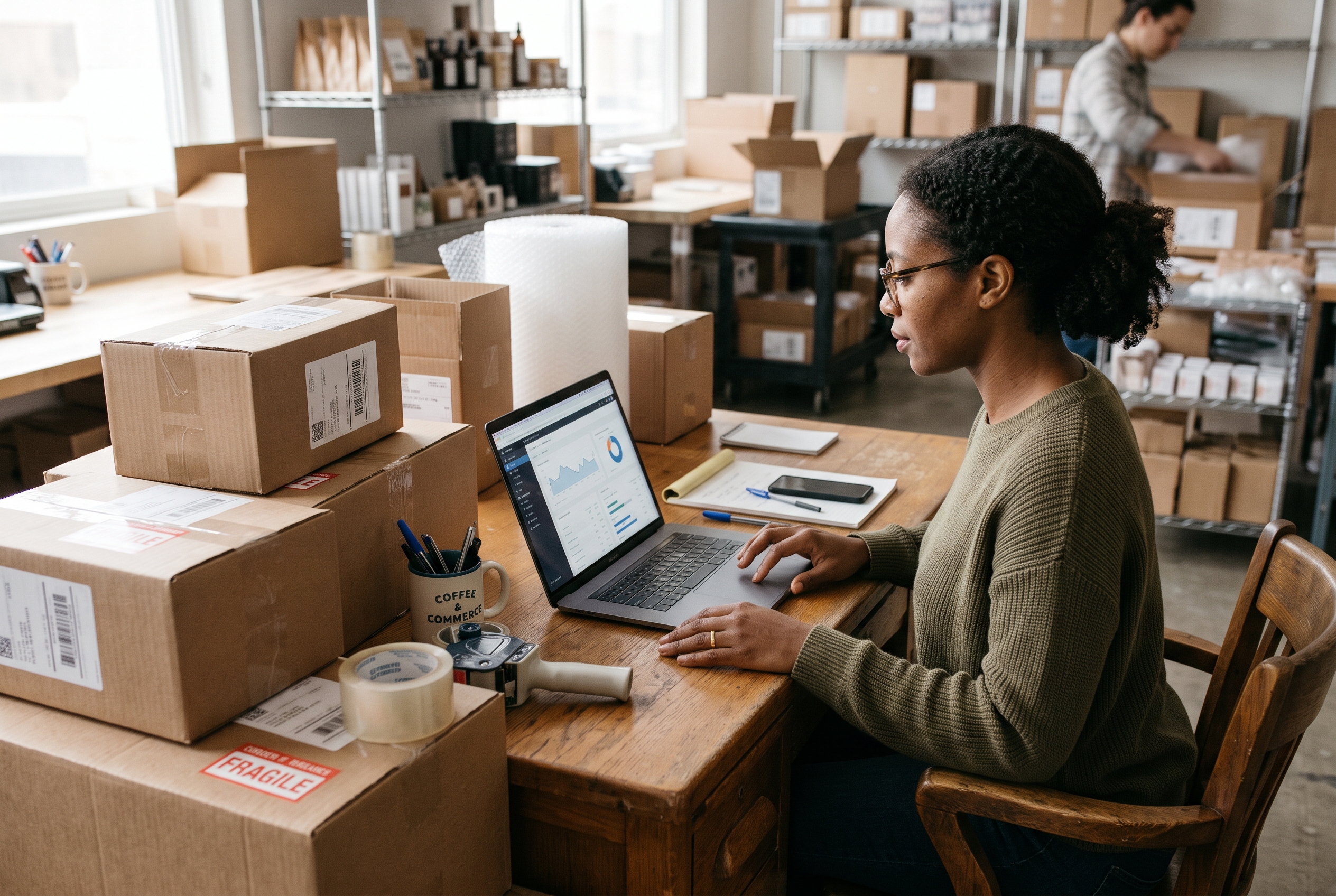
Check results monthly. Look at sessions, add-to-cart rate, and orders per campaign tag. If one placement, such as product links, converts much better than the website button, move more attention there. One caveat: tagged links can change how the URL looks in the browser, so test each one and make sure it loads the right page.
Also keep your Business Profile's built-in Performance data in view. It shows website clicks, calls, and direction requests, so you can compare those clicks with the sessions Analytics records. A large gap usually points to a slow page or a broken link.
Google Business Profile Posts for Shops and Local SEO
Posts are short updates that appear on your profile, and they work well for shops because each can carry a button linking to your store. Use them for launches, restocks, and limited offers. Google Business Profile posts for shops also show shoppers that the business is active, which builds trust before anyone clicks.
What to post
- New arrivals: one photo, one sentence, a Buy button to the product page.
- Offers: include dates and a code, so you can measure redemptions.
- Events: tastings, pop-ups, or local pickup days.
- Back in stock: a fast way to reuse demand you already built.
Post once or twice a week and tag each link with its own UTM. That alone gives you a clearer view than most small retailers ever have. Keep text short, lead with the product or offer, and use a real photo of your stock rather than a stock image. Offer posts that carry an end date are removed automatically, while update posts fade from view over time, so schedule a reminder to refresh them.
Local SEO for an online store
Local SEO for an online store comes down to consistency and relevance. Keep your name, address, and phone identical across your site, profile, and directories. Choose the most precise primary category. Collect reviews and reply to them. According to Google's guide to improving your local ranking, relevance, distance, and prominence are the three factors it weighs.
You can't change distance, but you can improve the other two. For relevance, fill every profile field, add secondary categories that truly apply, and name products the way shoppers search. For prominence, ask happy customers for reviews, mention specific products in your replies, and earn links from local blogs, suppliers, and community sites. Put your city and neighborhood in your store's about page and delivery information. If you offer neighborhood delivery, the process in setting up an online store with local delivery gives shoppers a reason to choose you over a far-away competitor. That's the core of local retailer online visibility: show up nearby, then make buying easy.
Common Mistakes and Troubleshooting
Why isn't my website link showing?
Edits can take up to a few days, and suspended or unverified profiles won't display them. Check for a suspension notice and confirm the URL has no typos.
What if my profile is suspended?
Suspensions usually follow edits that look like misrepresentation, such as a changed business name stuffed with keywords, a virtual address, or a website that doesn't match the business. Open the profile, read the notice, fix the flagged detail, and submit a reinstatement request through the Help center. Have proof ready: a storefront photo, a business license, or a utility bill. Don't create a duplicate profile, as that often makes things worse. Reviews typically take several business days.
Can I add more than one link?
You get one website field, plus separate links for appointments, menus, and orders where your category allows them. Use each for a different intent.
Should I link to my homepage or a product page?
Send people where they can act. Homepage for the general website button, specific pages for products and posts.
What breaks conversions most often?
- A slow, cluttered mobile store.
- Prices on Google that don't match the site.
- No visible shipping or pickup details.
- Dead product links after a catalog change.
Fix these four and your profile traffic converts noticeably better.
Turn Your Profile Into a Steady Order Source
Adding the link takes minutes. Making it pay takes a little discipline: link to the right page, list your best products, connect Merchant Center if you carry stock, tag everything with UTMs, and post weekly. The store behind the link matters just as much. If you don't have one yet, or yours is slow and costs more every time you add an app, Rovela builds a complete store from a plain-language conversation, with checkout, abandoned cart recovery, reviews, and analytics included in one flat subscription. Check Rovela's pricing or start from the homepage to see how fast a store can go live.