By El Ghali Bennis · Published
How to Create Product Images With AI: Practical Guide
Learn how to create product images with AI: a 5-step workflow, copyable prompts, a worked before/after example, and the rules for each sales channel.
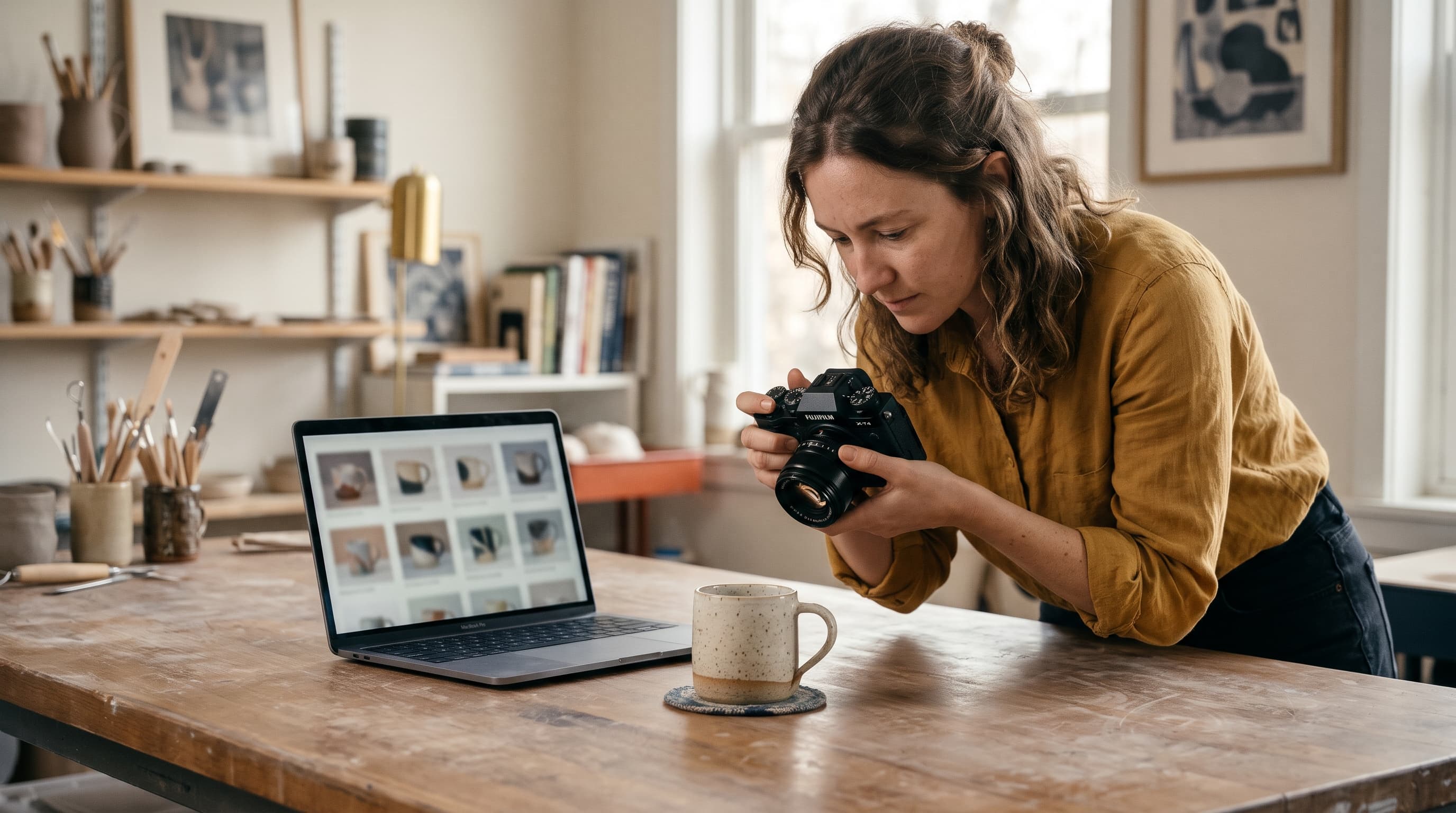
To create product images with AI, upload a clean photo of your product (or describe it in text), pick a scene or background, generate several variations, then check each one for accuracy before publishing. It works best for backgrounds, lifestyle scenes, and banners. Your real product details must stay untouched.
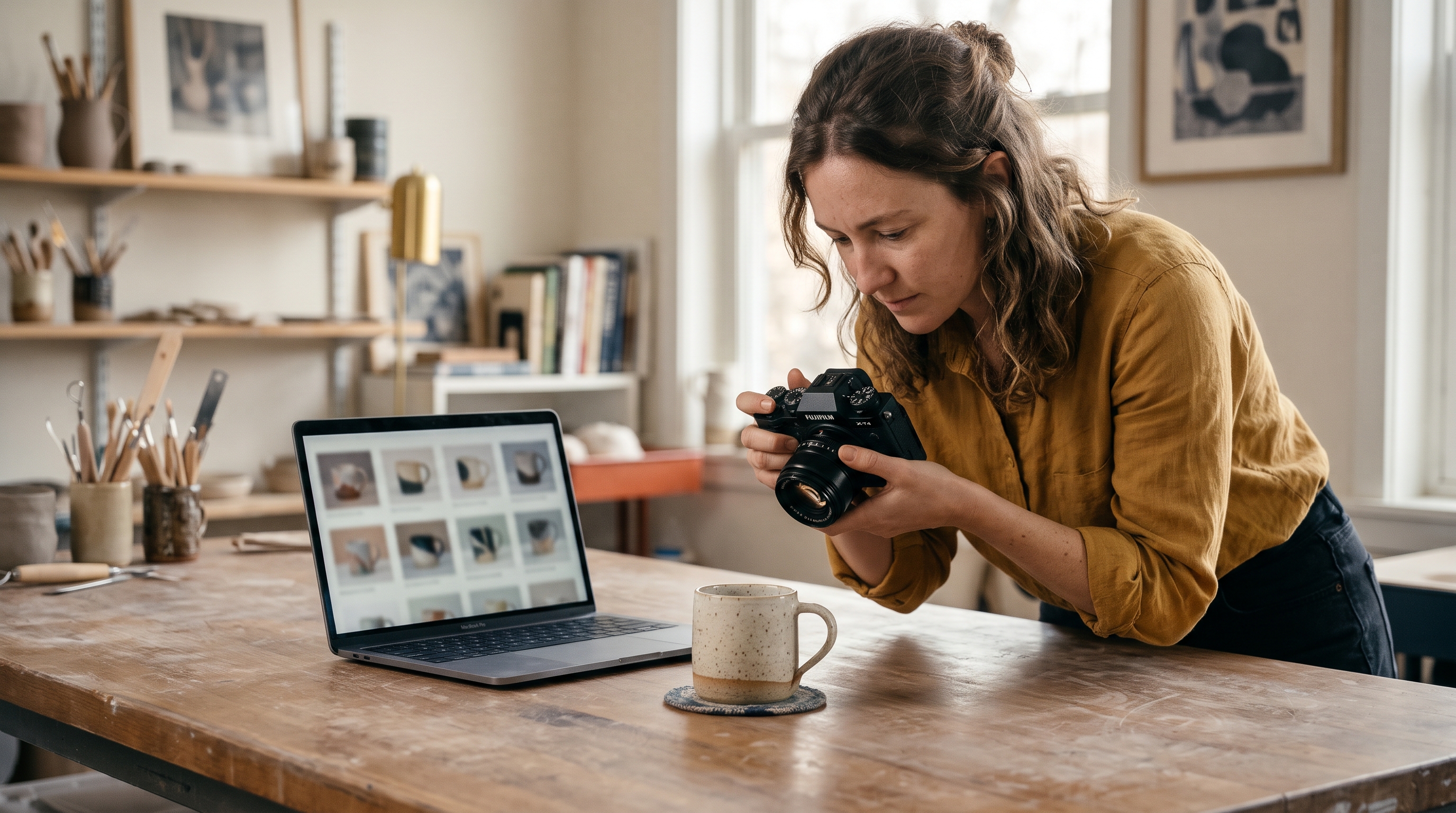
AI product photography has gone from novelty to routine for small stores. You no longer need a studio, a photographer, or a $1,500 shoot to get a catalog that looks consistent. But the tools only help if you know what to ask for and what to reject. This guide walks through the workflow, the prompts, the legal questions, and the mistakes that cost sales.
How Do You Create Product Images With AI?
You create product images with AI in five steps: capture a reference photo, choose the image type you need, write a specific prompt, generate multiple options, and review each result against your real product. Skipping the last step is where most stores get into trouble.
Step 1: Start with a reference photo if you have one
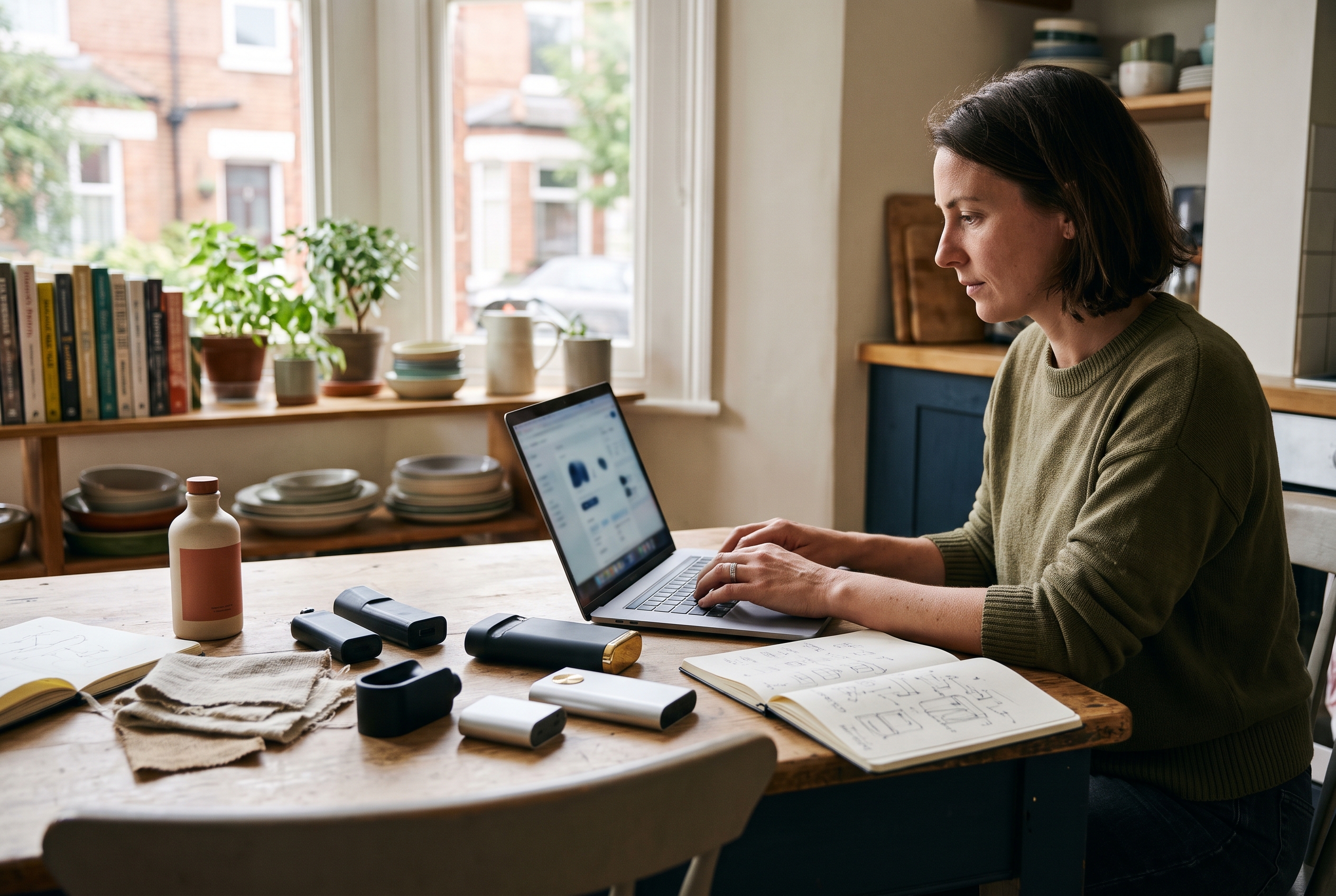
Generating from text alone is fast, but the AI invents the product. That's fine for a concept mockup and risky for a live listing. Using AI images with a reference photo keeps your actual shape, color, logo, and proportions. Shoot the product on a plain surface near a window, in sharp focus, with no heavy shadows. A phone is enough.
Step 2: Decide what kind of image you need
Different slots on your store need different images. A main product image wants a clean background. A lifestyle shot wants context. A banner wants empty space for text. Decide this first, because the prompt changes completely.
Step 3: Write a specific prompt
Vague prompts produce generic images. Name the product, the surface, the light, the camera angle, and the mood. The next section gives you templates.
Step 4: Generate in batches
Never judge a tool by one output. Generate six to ten variations, keep the best one or two, and discard the rest. Treat it like a contact sheet from a real shoot.
Step 5: Check, crop, and compress
Zoom to 200%. Look at text on labels, stitching, fingers, reflections, and edges. Then resize and compress so the file doesn't slow your page. Google's own guidance on image best practices recommends descriptive file names, alt text, and fast-loading formats.
A worked before and after example
Here is how the steps look on one product, a stoneware candle jar. Before: a phone photo taken on a cluttered kitchen counter, with a yellow cast from overhead lights and a cable in the corner. Prompt: "Stoneware candle jar on a light oak table beside a linen napkin, morning window light, shallow depth of field, warm tone." Result: out of eight generations, two kept the jar's exact glaze and lid shape, four subtly changed the lid, and two warped the label. We kept one, corrected its color against the real jar in daylight, and compressed it to a WebP file. The lesson is the ratio: expect to keep roughly one or two images in every eight, and budget your time for that.
Which Types of AI Product Images Work Best?
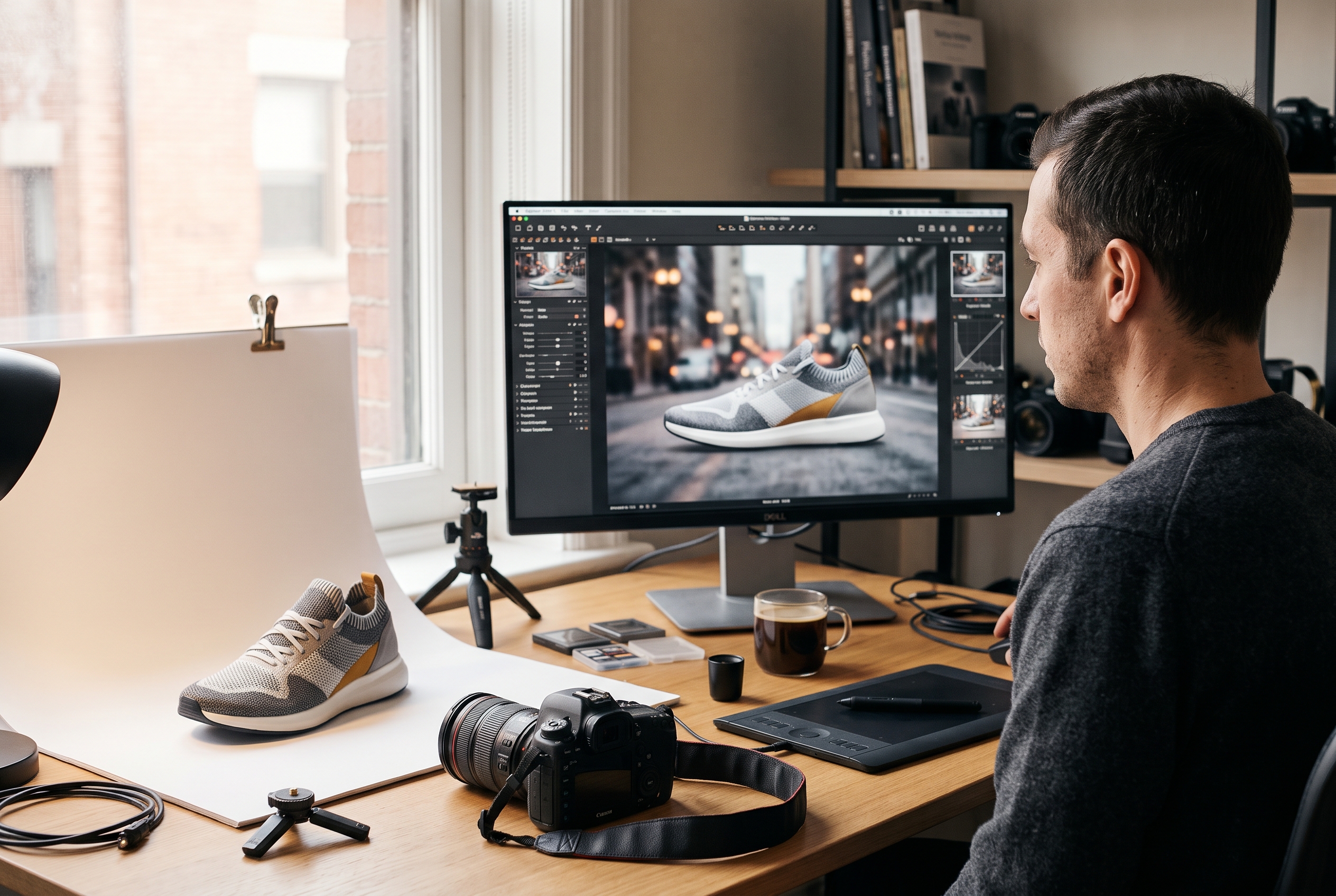
The most reliable uses are AI-generated product backgrounds, lifestyle scenes built around a real product photo, and promotional banners. Fully invented products and close-up detail shots are the weakest, because small errors become obvious.
| Image type | AI reliability | Best use |
|---|---|---|
| Clean white or colored background | High | Main listing image, marketplaces |
| Lifestyle scene from a reference photo | High | Secondary gallery images, ads |
| Seasonal or themed backdrops | High | Campaigns, email headers |
| Banner with copy space | High | Homepage hero, collection pages |
| Product generated from text only | Medium | Concepts, pre-launch mockups |
| Macro detail or texture shots | Low | Use real photography instead |
| Images showing hands holding the product | Low to medium | Check carefully for distortions |
AI lifestyle product photos
Lifestyle images show your product in use: a candle on a bedside table, a bag on a café chair. They're the most valuable thing AI does for small stores, since staging these in real life means props, locations, and time. Keep the scene plausible. A skincare bottle on a marble bathroom shelf works. The same bottle floating over a waterfall doesn't build trust.
AI-generated product backgrounds
Background replacement is the safest starting point. Your product stays real, and only the surroundings change. Use it to unify a catalog shot over months in different lighting. Consistency matters: a grid of products on the same soft gray backdrop looks far more premium than a mix of kitchen counters and garage floors.
AI banner images for an online store
Banners need negative space. Ask for "wide composition, product on the right third, empty soft-focus area on the left for headline text." Generate at the widest ratio your tool supports, then crop. Banners are forgiving, since nobody inspects them at 200%, so this is a great place to start experimenting.
Which kind of tool should you use?
Tools fall into three groups, and each suits a different store.
- General image generators: Flexible and good for concepts and banners, but they don't reliably preserve your exact product unless they accept a reference image.
- Dedicated product-photo tools: Built for cutting out your product and replacing the background. Best for catalogs and marketplace images.
- Store-builder tools: Image generation built into the platform where you publish. Slower to experiment with, but there's no exporting, renaming, or re-uploading.
Whichever you pick, test it on your hardest product first, such as something glossy or transparent. If it handles that, the rest will be easy.
Ecommerce Image Prompts You Can Copy
Good ecommerce image prompts follow one formula: subject + surface + setting + light + camera + mood. Swap the bracketed parts for your product and you've got a working starting point. If you generate product images from text, this structure does most of the work.
Clean background prompts
- "[Product] centered on a seamless light gray background, soft diffused studio light, subtle shadow beneath, front-facing, sharp focus, square crop."
- "[Product] on a pale sage green backdrop, top-down view, even lighting, no props, plenty of margin around the edges."
Lifestyle prompts
- "[Product] on a light oak table beside a linen napkin and a small glass of water, morning window light, shallow depth of field, warm tone."
- "[Product] on a bathroom shelf with a folded white towel and a small plant, soft natural light, calm and minimal."
- "[Product] in a backpack side pocket on a hiking trail, golden hour, blurred forest behind."
Banner prompts
- "Wide hero image, [product] on the right third on a terracotta pedestal, soft shadows, empty cream background on the left for headline text."
- "Seasonal banner, [product] with pine branches and warm string lights, dark green background, space at the top for a sale message."
What to add and what to avoid
Add camera language (35mm, overhead, eye-level), material words (matte, brushed steel, linen), and a light source (window light, softbox). Avoid asking for readable text inside the image. AI still garbles lettering, so add headlines in your editor instead. For more prompt thinking on the page itself, see these AI prompts for product page design.
Can You Replace Stock Photos and Skip the Photographer?
Yes, for most lifestyle, banner, and background needs. You can replace stock photos with AI and produce product photography without a photographer, as long as you start from a real product photo and verify the output. Stock photos can't show your product anyway, which is the whole problem with them.
Where AI beats stock and studio shoots
- Cost: A studio shoot often bills per image or per day. As an illustration, 20 products at 3 images each is 60 images. At a hypothetical $25 per edited image, that's $1,500, versus a monthly software subscription for AI. Your own quotes will differ, so price it with your numbers.
- Speed: You can test five scenes before lunch instead of waiting a week for edits.
- Uniqueness: Stock images appear on dozens of competitor sites. A generated scene built around your product doesn't.
- Seasonality: Holiday and summer variants take minutes.
Where you still need real photos
Keep real photography for detail-critical items: jewelry, fabric texture, anything where buyers zoom, and anything where fit, size, or color accuracy drives returns. Clothing is a good example. Shoppers need true color and proportion, and a wrong shade creates refunds. If you sell apparel, pair real photos with a clear size chart and use AI for the lifestyle layer only.
Free AI product photo generators
A free AI product photo generator is fine for testing prompts and learning what looks right. Expect watermarks, lower resolution, daily limits, or restrictive licensing. Before using any free output commercially, read the terms. Free is a good way to learn, but a paid or built-in tool is usually the better path once images appear on live product pages.
Are AI Product Images Allowed on Online Stores?
Generally yes, but rules vary by channel. Your own store has no restriction beyond consumer protection law. Marketplaces and ad platforms add requirements, and all of them expect the image to represent the real product accurately.
Rules to check by channel
- Your own store: You decide. Misleading images can still trigger complaints or chargebacks.
- Amazon: Main images must follow Amazon's image requirements, including a pure white background and an accurate depiction of the item. Check Amazon's seller documentation before uploading.
- Google Shopping: Google Merchant Center help restricts promotional overlays, watermarks, and misleading imagery on product listings.
- Meta ads: Meta's advertising policies prohibit misleading content and have been adding disclosure expectations for AI-generated media. Review the current policy before running creative.
The honesty test
Ask one question: would a customer feel misled when the box arrives? If the AI image changes the product's color, adds a feature, or exaggerates size, the answer is yes. Background and scene changes are fine. Product changes are not. In the United States, the Federal Trade Commission treats deceptive advertising as a violation regardless of how the image was made.
Ownership and licensing
Each tool sets its own commercial-use terms, and copyright protection for purely AI-generated output is limited in several jurisdictions, including the United States. Practically, that means competitors might copy your generated scenes with less legal friction than a photograph. Your real product photo and brand elements remain the defensible part.
Common Mistakes and a Quality Checklist
Most failed AI product images share the same few flaws: warped details, wrong color, impossible shadows, and inconsistent style across the catalog. A short checklist catches nearly all of them.
- Color match: Compare against the real product in daylight. Fix it or discard it.
- Logo and label check: Zoom in. Garbled text means regenerate or composite your real label.
- Shadow and light direction: Shadows should fall the same way across the product and the scene.
- Scale: A mug shouldn't look like a bucket. Include a familiar object for reference.
- Hands and fingers: Count them. Still the most common tell.
- Catalog consistency: Use the same background family, crop, and lighting style across a collection.
- File weight: Compress to modern formats like WebP and keep hero images light.
- Alt text: Describe the image plainly for accessibility and search.
A simple workflow for 20 products
Shoot all 20 products in one 90-minute session on the same surface. Generate a clean-background version and two lifestyle variants of each. Keep the real photo as image one, the clean version as image two, and the best lifestyle shot as image three. That's 60 usable images from one afternoon of real work. If you want the wider picture of where this fits, read our guide to AI in ecommerce.
Where AI Images Fit Into Your Store Build
Images are one piece of a store that converts. Product descriptions, page layout, and checkout matter just as much. If you're building from scratch, see how to build an online store with AI, and pair your new visuals with copy that sounds human.
Rovela includes image generation inside the store builder, so you can create product images, backgrounds, and banners by chatting, without exporting files between tools. It's one of 100+ features included in a single subscription, and you can see the plans if you're comparing costs. If you'd rather start with the whole store, describe your business to Rovela and review what it builds.
Final Thoughts
Learning how to create product images with AI comes down to a few habits: start from a real photo, prompt with specifics, generate in batches, and inspect everything at full zoom. Use AI for backgrounds, lifestyle scenes, and banners. Keep real photography where accuracy decides the sale. Do that, and you'll get a polished, consistent catalog without a studio budget, and without misleading a single customer. Ready to try it? Generate your first batch today.