By El Ghali Bennis · Published
How to Add a Logo to Online Store: Sizes, Formats, Steps
Learn how to add a logo to your online store: the right file format, header dimensions, favicon size, mobile tweaks and email setup, step by step.

To add a logo to your online store, export it as an SVG (or a transparent PNG), open your store's branding or theme settings, upload it to the header logo slot, then add a square favicon and an email version. A header logo usually sits around 150-250 pixels wide, and the whole job takes about ten minutes.

That's the short version. The details are where stores go wrong: a blurry logo on retina screens, a white box around a PNG, a header that eats half the phone screen, a favicon that's unreadable in a browser tab. This guide covers the file prep, the upload, the placement, and the places people forget (emails, invoices, social previews). You'll also get a branding checklist at the end.
What Do You Need Before You Add a Logo to Your Online Store?
You need three things: a clean master file, a transparent background version, and a square icon version. Having these ready before you touch your store settings prevents nearly every logo problem, from fuzzy edges to a logo that vanishes on dark backgrounds.
Here's the minimum kit most stores should prepare:
- Primary logo (horizontal): your full wordmark or symbol plus name, for the header.
- Icon or monogram (square): for the favicon, social avatars and mobile app icons.
- Light and dark versions: one for white backgrounds, one for dark footers or hero images.
- A flat, single-color version: handy for invoices, packing slips and stamps.
If you don't have a logo yet, don't stall your launch. A simple wordmark in a clean typeface beats waiting three weeks for a designer. You can always run an update logo on website job later, and on a modern platform it's a thirty-second swap.
SVG vs PNG logo: which should you use?
Use SVG when your platform supports it, and a high-resolution transparent PNG when it doesn't. SVG is vector-based, so it stays sharp at any size and on any screen density. PNG is a pixel grid, so it blurs if it's too small for the space it fills.
| Format | Best for | Transparency | Watch out for |
|---|---|---|---|
| SVG | Header logo, footer, any on-site use | Yes | Not supported in most email clients |
| PNG | Emails, social, fallback for headers | Yes | Blurry if uploaded too small |
| JPG | Photos only, rarely logos | No | White box on colored backgrounds, compression artifacts |
| WebP | Fast-loading raster alternative | Yes | Older email clients can't display it |
| ICO / PNG | Favicons | Yes | Needs a square canvas |
So the best logo file format for website use is SVG, with PNG as the dependable backup. The MDN Web Docs on developer.mozilla.org document SVG as a scalable vector format supported by all current browsers, which is why it's the default recommendation for logos.
How to get a transparent background logo PNG
A transparent background logo PNG lets your logo sit on any color without a white rectangle around it. Export it from your design tool (Figma, Canva, Illustrator, Affinity) with the background set to transparent and the "PNG" format selected.
Two quick checks save you grief. Open the file on a dark gray background; if you see a white halo around the edges, the transparency isn't clean. And export at 2x your display size, so a logo shown at 200 pixels wide should be about 400 pixels wide in the file.
How to Upload a Logo to Your Store, Step by Step
Learning how to upload logo to store settings is straightforward on any platform: find the branding or theme section, pick the logo field, upload, preview, and save. The exact menu names change, but the sequence doesn't.
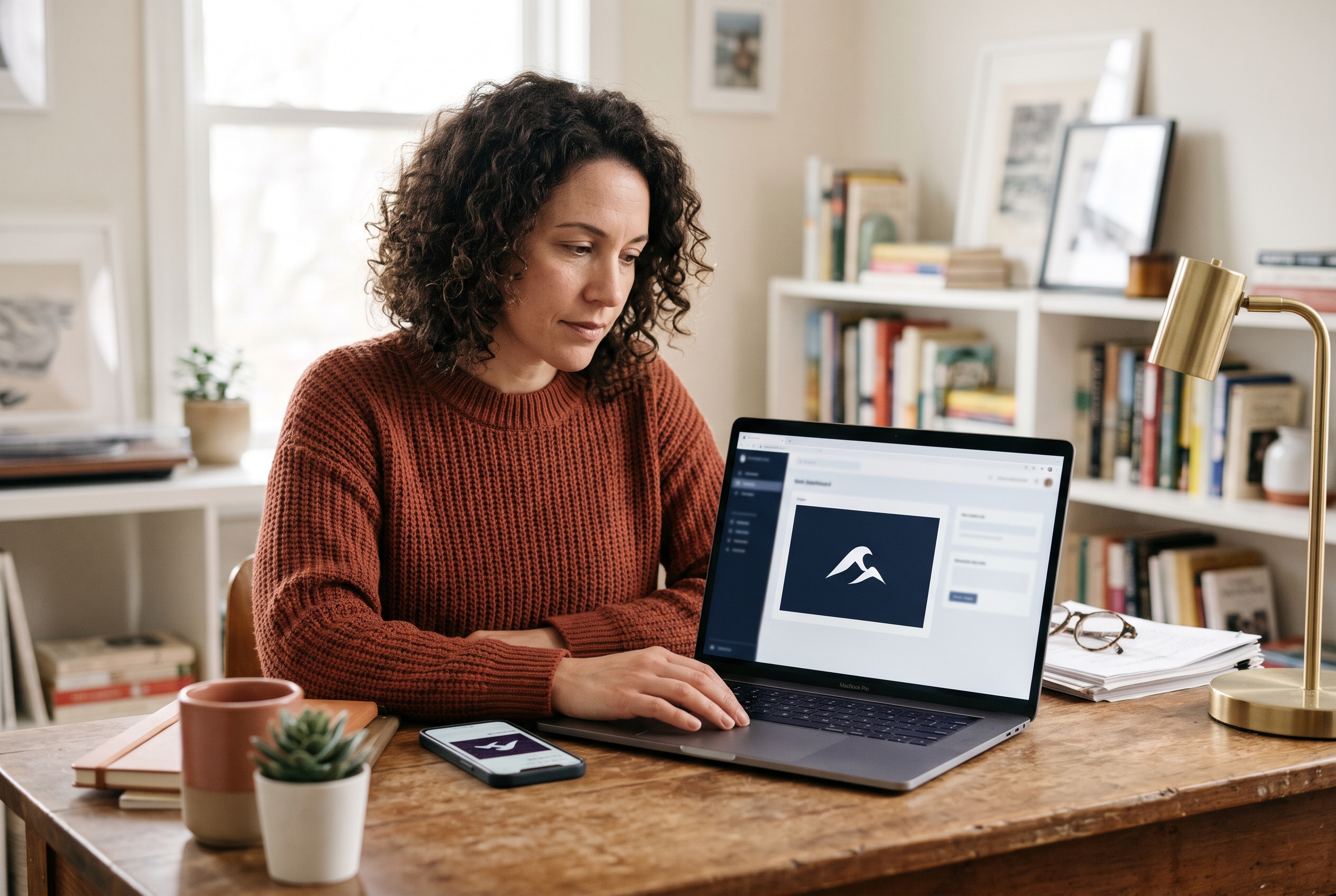
- Open your branding settings. On Shopify it's the theme customizer (Online Store, then Themes, then Customize, then Header). On WooCommerce it's Appearance, then Customize, then Site Identity. On Wix and Squarespace it's the header editor.
- Upload the primary logo. Pick your SVG or transparent PNG. If the field rejects SVG, use the 2x PNG.
- Set the width. Most themes ask for a logo width in pixels. Start at 160-200 px on desktop.
- Upload the favicon. This is usually a separate field.
- Add alt text. Write the store name, such as "Alder & Oak home goods". It helps accessibility and image search.
- Preview on desktop and phone before you save.
- Clear your cache if the old logo still shows. Browsers hang onto logos stubbornly.
If you're doing this to change logo on ecommerce website that's already live, upload the new file with a new filename. Reusing the old name is the top reason stores keep showing the old logo for days.
The Rovela way: ask in chat
On Rovela, you skip the menu hunt. You tell the assistant "replace my logo with this file and use it in the header, emails and favicon," and it updates all three. Branding, storefront and transactional emails live in one place, so the logo stays consistent without an app or a developer. If you're still building from scratch, our guide to building an online store without coding walks through the full setup.
What Is the Right Online Store Logo Size?
The right online store logo size for a desktop header is roughly 150-250 pixels wide and 40-80 pixels tall, displayed. Upload a file at double those numbers (about 300-500 px wide) so it stays crisp on high-density screens.
Here are practical logo dimensions for website header use, plus the other places your logo appears:
| Placement | Displayed size | Upload at |
|---|---|---|
| Desktop header | 150-250 px wide, 40-80 px tall | 300-500 px wide |
| Mobile header | 100-140 px wide, 28-44 px tall | 200-280 px wide |
| Footer | 120-200 px wide | 240-400 px wide |
| Favicon | 16x16 and 32x32 px | 512x512 px square source |
| Email header | 150-200 px wide | 300-400 px wide PNG |
| Social profile image | Roughly 400x400 px | 800x800 px |
Keep the file light. A header logo should weigh well under 50 KB, and an SVG is often under 10 KB. Your logo loads on every single page, so bloat there costs you on every visit.
Favicon size for online store tabs
The standard favicon size for online store sites is 32x32 pixels, with a 512x512 source file for crisp scaling. Google's Search Central documentation at developers.google.com/search says favicons should be a multiple of 48 pixels square to display in search results, so a 48x48 or 96x96 version is worth including too.
Don't shrink your full logo into a favicon. A long wordmark turns to mush at 16 pixels. Use the first letter, a symbol, or a simplified mark on a solid background.
Where Should You Put Your Logo on an Ecommerce Site?
For logo placement on ecommerce site headers, put it top-left and link it to your homepage. That's where shoppers expect it, and the Nielsen Norman Group, at nngroup.com, has long reported that users look for the logo in the top-left corner and expect a click to go home.

Centered logos work too, especially for fashion and lifestyle brands with short menus. The catch is that a centered logo pushes navigation to the sides or below, which adds header height. If your store has more than six main categories, stay left.
Responsive logo mobile header tips
A responsive logo mobile header should be smaller, simpler and never push products below the fold. Over half of ecommerce traffic is mobile, so this is where most shoppers meet your brand.
- Cap mobile header height at about 56-64 px total, including the menu and cart icons.
- Swap to a compact logo or monogram if the full wordmark gets smaller than about 100 px wide.
- Test at 360 px viewport width, the common small Android size.
- Keep clear space around the logo equal to roughly the height of its tallest letter.
- Make sure it doesn't collide with the cart or hamburger icon.
Also consider a sticky header. Shrink the logo by 20-30% when the shopper scrolls so the header stays slim but your brand stays visible.
How Do You Add Your Logo to Emails, Invoices and Other Touchpoints?
Add your logo to every message customers receive: order confirmations, shipping updates, abandoned cart emails and invoices. Consistent branding at those moments builds trust, and these emails typically get opened far more than promotions.
For logo for email templates, use a PNG, not an SVG. Gmail and Outlook don't reliably render SVG. Export at 300-400 px wide, display it at 150-200 px, and keep the file under 100 KB. Add alt text with your store name so something shows even when images are blocked.
A short list of other places your logo should live:
- Checkout page: a smaller logo that links back to the cart, not the homepage, so you don't leak buyers.
- Packing slips and invoices: the flat single-color version prints best.
- Social preview image: the picture that appears when someone shares your link. Include your logo on a clean background.
- Google Business Profile: if you have a local presence, our guide to adding your online store link to Google Business Profile covers it.
- Payment pages: Stripe and PayPal both let you add your logo to hosted checkout and receipts. See our PayPal setup guide for small shops.
Stripe, for one, lets you upload a brand icon and logo in its dashboard branding settings, documented at stripe.com/docs, so receipts and hosted payment pages match your storefront.
Store Branding Checklist and Common Logo Mistakes
Use this store branding checklist after any logo upload or redesign. Most stores fail on two or three items, and each one is a ten-minute fix.
- Header logo is SVG or a 2x transparent PNG, and looks sharp on a phone.
- Logo links to the homepage.
- Favicon is square, readable at 16 px, and shows in the browser tab.
- Dark-background version exists and is used in the footer or hero if needed.
- Email templates show a PNG logo with alt text.
- Invoices and packing slips carry the logo.
- Social preview image includes the brand.
- Checkout and customer account pages are branded too.
- Old logo files are deleted or renamed so nobody uses them by mistake.
- Brand colors and fonts on the site match the logo.
Mistakes that make a logo look amateur
- Stretching it. Always lock the aspect ratio.
- Uploading a JPG. You'll get a white box on anything that isn't white.
- Going tiny to "look minimal". If shoppers can't read it, it isn't doing its job.
- Going huge. A 120 px tall header logo pushes products out of view.
- Skipping the favicon. A default globe or platform icon looks unfinished.
- Forgetting cache. You changed it, the browser didn't. Hard refresh with Ctrl+Shift+R.
Logos are one slice of trust. Shoppers also look for reviews, clear policies and a professional product page. If you're working through the rest of the list, see how to add product reviews to your online store and add products properly.
Add Your Logo Once, Keep It Consistent Everywhere
Adding a logo to your online store comes down to a few decisions: SVG first, transparent PNG as backup, about 150-250 px wide in the header, a square favicon, a PNG for emails, and a slimmer version on mobile. Get those right and every future change is quick.
The real cost of logos isn't the upload. It's the drift: one version in the header, another in emails, a stale one on invoices. If you'd rather change it once and have it update everywhere, Rovela lets you describe the change in chat and handles the storefront, favicon and emails together, with 100+ features included in a single subscription (see pricing). Either way, run the checklist above and your brand will look the same from first click to delivery confirmation.